- Buy or Renew : +1 855-673-5515
- Support



Best Printer Driver Updater for Windows
Printer drivers are the backbone of your printing experience. Whether you use HP, Canon, Epson, Brother, or any other brand, outdated printer drivers can cause:
- Printing errors
- Slow printing
- “Driver unavailable” messages
- Paper jams caused by incorrect commands
- Missing print jobs
- Poor-quality printouts
- USB/Wi-Fi printer not detected
A trustworthy printer driver update utility is the optimal method to guarantee seamless, issue-free printing—particularly on Windows 10 and Windows 11. Within this guide, we will cover all the essential information and demonstrate how utilities such as Kenoxis Driver Updater assist in updating printer drivers automatically.
What Does a Printer Driver Updater Do?
A printer driver updater constitutes software that independently examines your computer, identifies drivers that are obsolete or absent, and sets up the appropriate, most current version sourced from authorized suppliers.
This eliminates the requirement for manual lookups, downloading, and installation—rendering the whole procedure secure and rapid.
A good printer driver updater should:
- Support all printer brands
- Install WHQL-certified drivers
- Fix driver errors
- Solve connectivity issues
- Automatically update in the background
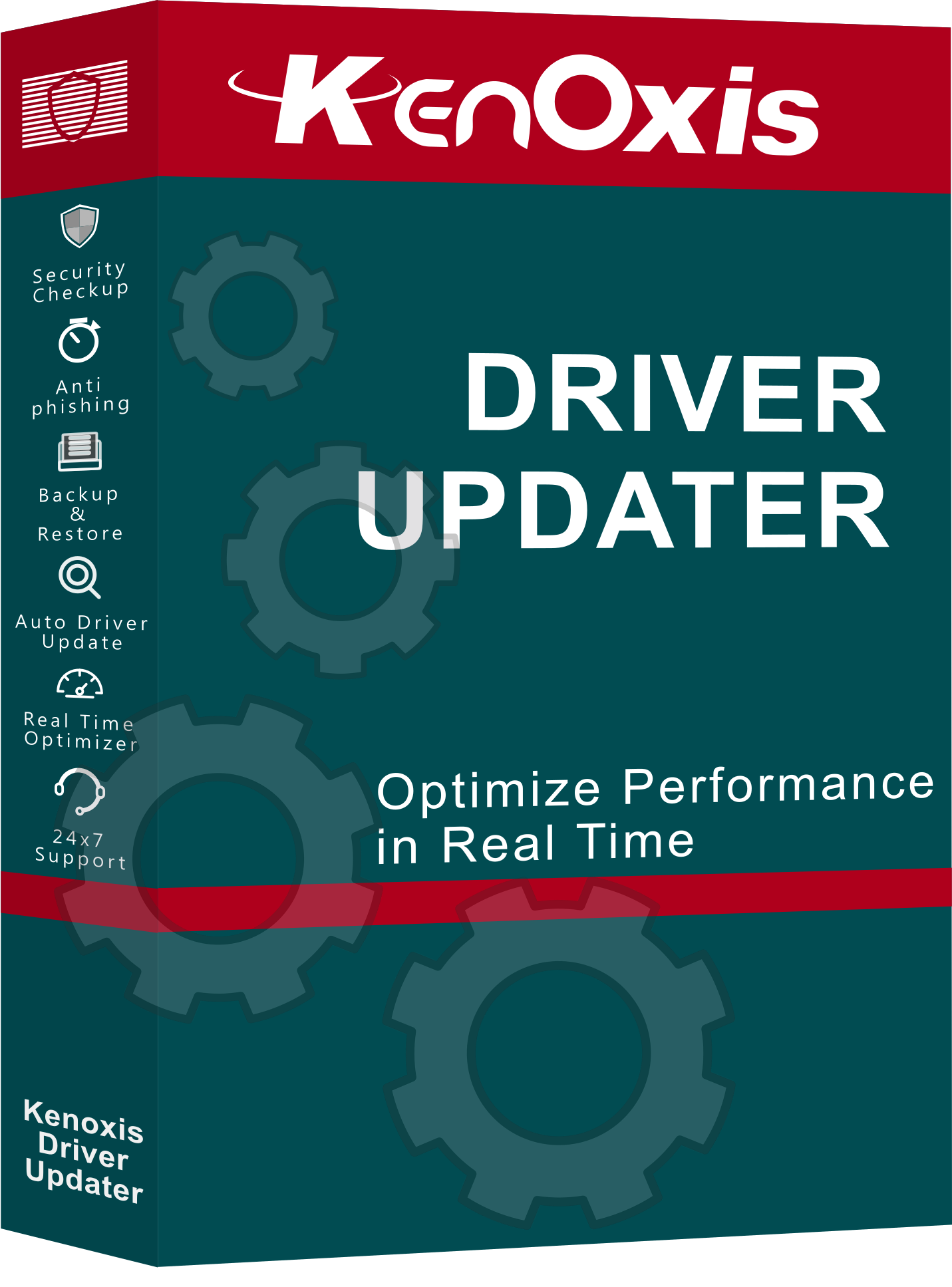
Kenoxis Driver Updater is designed to do exactly this for US users.
Why You Must Update Printer Drivers Regularly
Your Windows PC communicates with your printer through drivers. When they become outdated, corrupted, or incompatible, printing stops working properly.
Updating printer drivers helps:
- Fix “printer not responding” issues
- Prevent crashes during printing
- Improve Wi-Fi printer detection
- Restore printing speed
- Improve compatibility with Windows updates
- Reduce system errors
Most users don’t realize:
Windows updates often break printer drivers.
A printer driver updater ensures everything stays compatible.
Manual vs Automatic Printer Driver Updates
Manual Update
You must:
- Visit the printer manufacturer site
- Find the exact driver
- Match your model number
- Check OS compatibility
- Download/install manually
This is slow and risky—downloading incorrect drivers can break your printer.
Automatic Update (Recommended)
A printer driver updater like Kenoxis does everything automatically:
- Detects printer model
- Finds and verifies the correct driver
- Downloads safely
- Installs automatically
- Fixes missing/corrupt drivers
This is safe, fast, and ideal for non-technical users.
How to Update Printer Drivers Automatically with Kenoxis
Follow these steps to update all your printer drivers with one click:
Step 1: Install Kenoxis Driver Updater
Download the tool from the official Kenoxis website.
Step 2: Run a Full Driver Scan
Click Scan Now.
The tool detects outdated printer, audio, and system drivers.
Step 3: Click “Update All”
Kenoxis downloads and installs the latest verified printer drivers.
Step 4: Restart Your PC
This ensures the new driver works correctly.
That’s it—your printer drivers are updated!
Best Printer Driver Updater Tools Compared (2026)
Tool Automatic Updates Printer Support Free Scan Verified Drivers
Kenoxis Driver Updater Yes All Major Brands Yes Yes
Driver Booster Yes Most Brands Limited Yes
Driver Easy Yes Most Brands Yes Yes
Driver Talent Yes Limited Yes Yes
Benefits of Using Kenoxis as Your Printer Driver Updater
Multi-Brand Support
HP, Canon, Epson, Brother, Samsung, Ricoh, Xerox & more.
Automatic Driver Matching
Ensures you always get the correct, compatible version.
Fixes Printer Errors
Solves “driver unavailable,” “printer offline,” and connection issues.
One-Click Updates
No technical steps required.
WHQL-Certified Drivers
Safe, verified, trusted.
Fast & Lightweight
Works smoothly on Windows 10 and 11.
FAQs
Q 1. What is the best way to update printer drivers automatically?
Ans Using Kenoxis Driver Updater. It detects your printer model and installs the correct latest drivers instantly.
Q 2. Does Kenoxis support HP/Canon/Epson printers?
Ans Yes — it supports all major US printer brands.
Q 3. Is a printer driver updater safe?
Ans Yes, as long as it installs WHQL-certified drivers from trusted sources.
Q 4. Can I update printer drivers manually?
Ans You can, but it’s slow and risky. One wrong driver can break your printer.
Q 5. Does Kenoxis offer a free scan?
Ans Yes — you can scan and detect outdated drivers for free.
Q 6. Does Windows automatically update printer drivers?
Ans Sometimes, but not always correctly or immediately.
How Often Should You Update Printer Drivers?
For best performance:
- Run a weekly scan using Kenoxis Driver Updater
- Update immediately if a Windows update causes print issues
Final Verdict — Why Kenoxis Is the Best Printer Driver Updater
If you are a Windows user in the US, Kenoxis offers:
- Automatic printer driver detection
- Verified driver installation
- Fast updates
- One-click fixes
- Compatibility with all major printers
Keeping drivers updated ensures:
- Smooth printing
- No errors
- Fast performance
- Reliable connectivity
Conclusion
Updating your printer drivers doesn’t have to be complicated. With Kenoxis Driver Updater Tool, you can update all printer drivers safely, quickly, and automatically.
This ensures:
- No printing errors
- Faster performance
- Better compatibility
- Zero technical work
Get Kenoxis today and keep your printer running smoothly on all Windows versions.
Most Popular

Best Antivirus for Computer Protection in 2026: How to Stay Safe from Hackers
16 Feb 2026

Complete Online Protection with KenoxisAV Antiviruses
15 Jan 2026
.png)
What is Antivirus Software? | Definition from KenoxisAV
12 Jan 2026

Antivirus 101: How to Keep Your Devices Safe in a Digital World
30 Dec 2025

The Future of Antivirus: What Windows 10 Users Need to Know in 2025
13 Jun 2025
.png)
How to Choose the Right Antivirus Software for Your Needs
09 Apr 2025

How to Use Windows Security for Virus & Threat Protection (2025 Guide)
07 Apr 2025
.png)
Antivirus Uncovered: How It Works and Who Needs It
28 Mar 2025

Best Antivirus for Windows 10 in 2025: Top Picks (Including Kenoxisav)
07 Mar 2025
.png)
Why Antivirus Software is Essential for Online Security in 2025
19 Feb 2025